

Overview
Getting started
Apply for the service
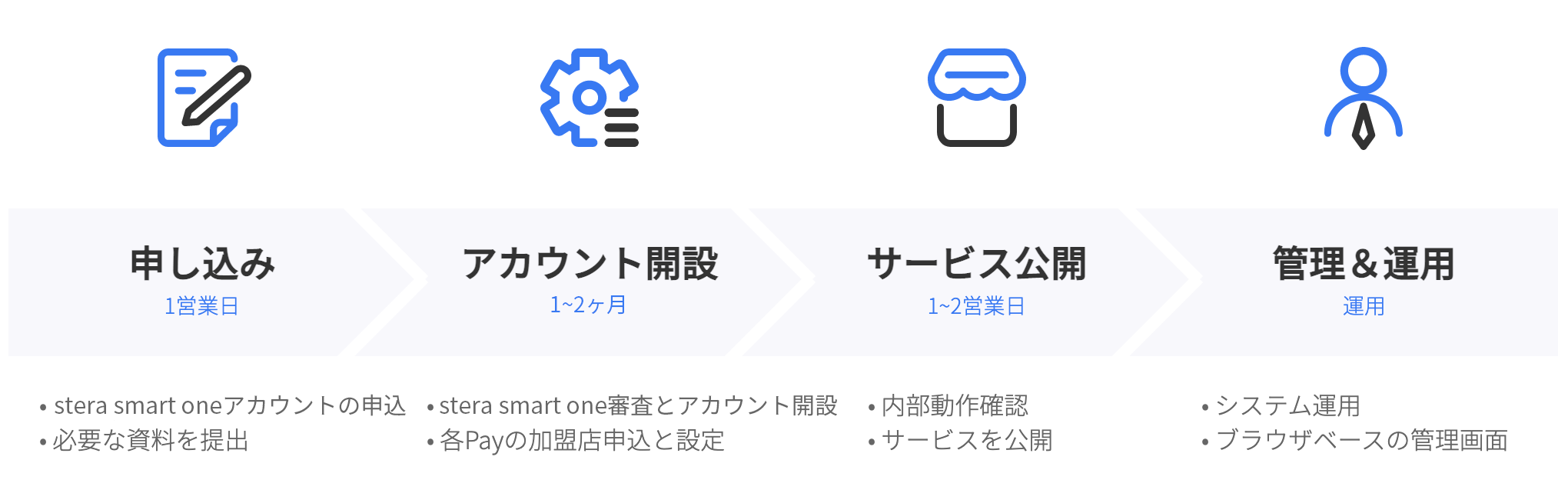
To apply for stera smart one (including each payment method), you need documents that verify the actual operation of your service.
- For online services, you need documents that identify the actual operator and the products or services offered, such as the URL of your website or app, the URL of your "disclosure under the Act on Specified Commercial Transactions" page, and the URL of your "privacy policy" page. If your service has not yet launched, you need the service specifications, in particular materials describing the payment flow for your products or services.
- For offline services, you need documents that verify the store actually exists (such as photos of the store exterior and interior). If you have not yet opened for business, you need documents that confirm you are about to launch the service, such as a lease or purchase agreement for the business premises.
For details, contact us through the stera smart one website.
About test accounts
To use stera smart one, you need a service that actually processes payments (online payments or in-person payments). Test accounts used only for development cannot pass the payment providers' reviews, so we cannot provide them. For technical verification, refer to the API Reference in this documentation.
Sign in
Sign in to the stera smart one dashboard you were given with your username and password.
API keys
To use stera smart one, every request must be encrypted and decrypted using a public key and a secret key.
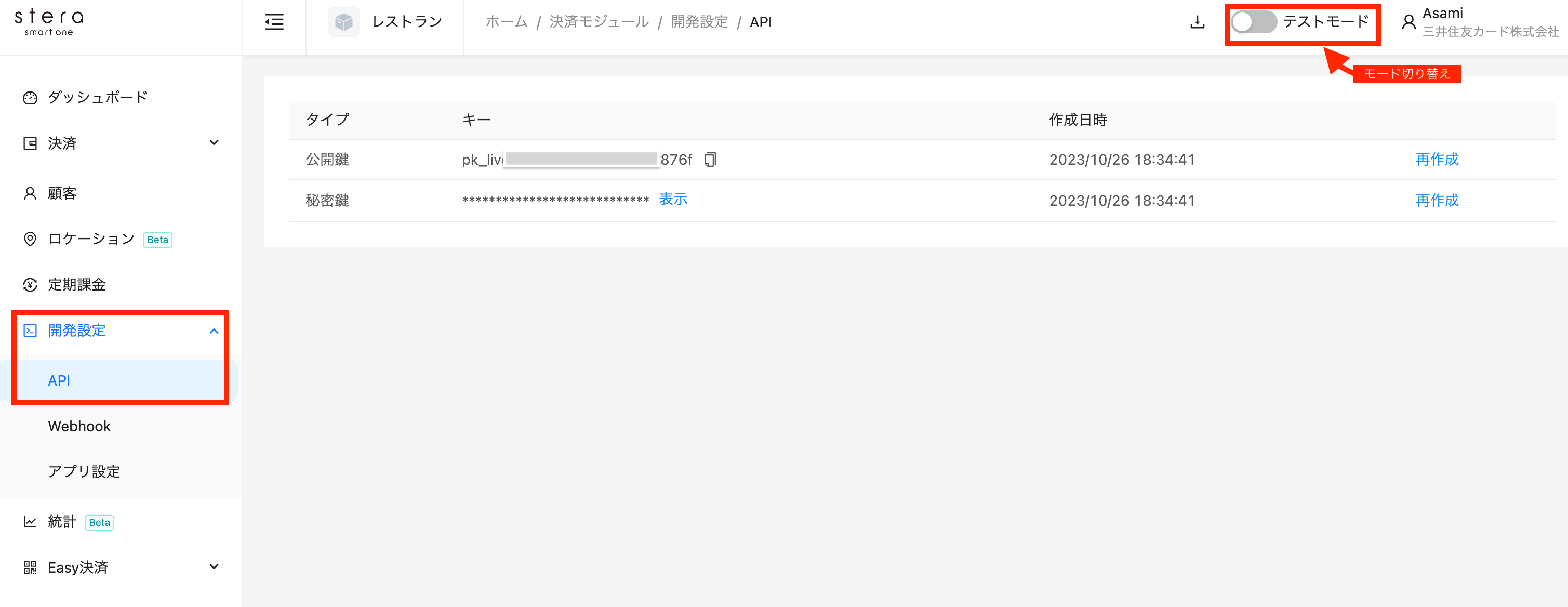
You can find both the public key and the secret key as follows. In the stera smart one dashboard, select "開発設定" (Developer settings) from the left menu. The values shown under "公開鍵" (Public key) and "秘密鍵" (Secret key) are the respective keys.
Keys for Live mode and Test mode
Both the public key and the secret key have different values in Test mode and Live mode. When you switch from Test mode to Live mode, switch to the Live mode keys as well.
Test your integration
To check that everything works, try creating a Charge in Test mode.
curl --request POST \
  --url https://api.elepay.io/charges \
  --header 'Authorization: Basic sk_test_xxxxxxxxxxxxxxxxxxxxx:' \
  --header 'accept: application/json;charset=utf-8' \
  --header 'content-type: application/json;charset=utf-8'
Last updated on